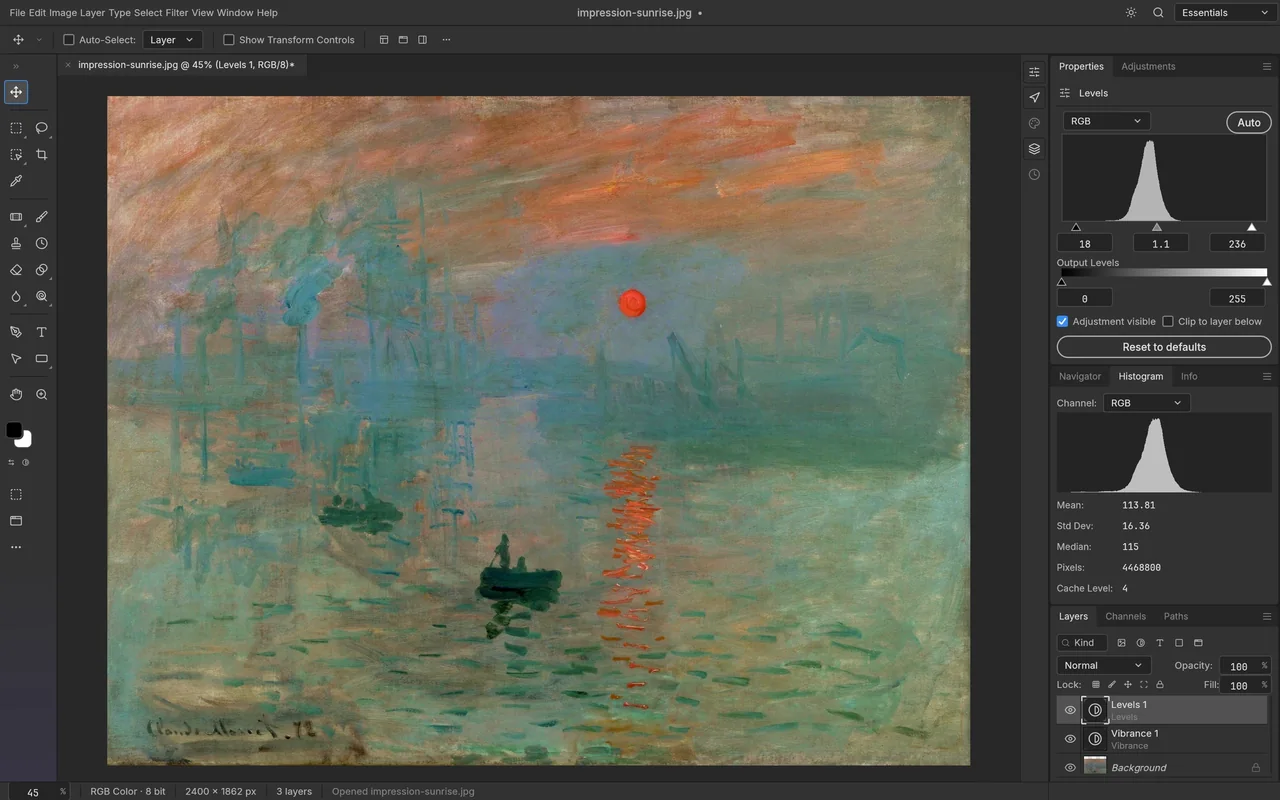
Brightness and colour
Use levels and the histogram to adjust the light and dark areas of an image.
Edit photos with layers, masks, colour adjustments and text, without a subscription.
Free · No subscription · No account needed for local editing · Windows / macOS / Linux
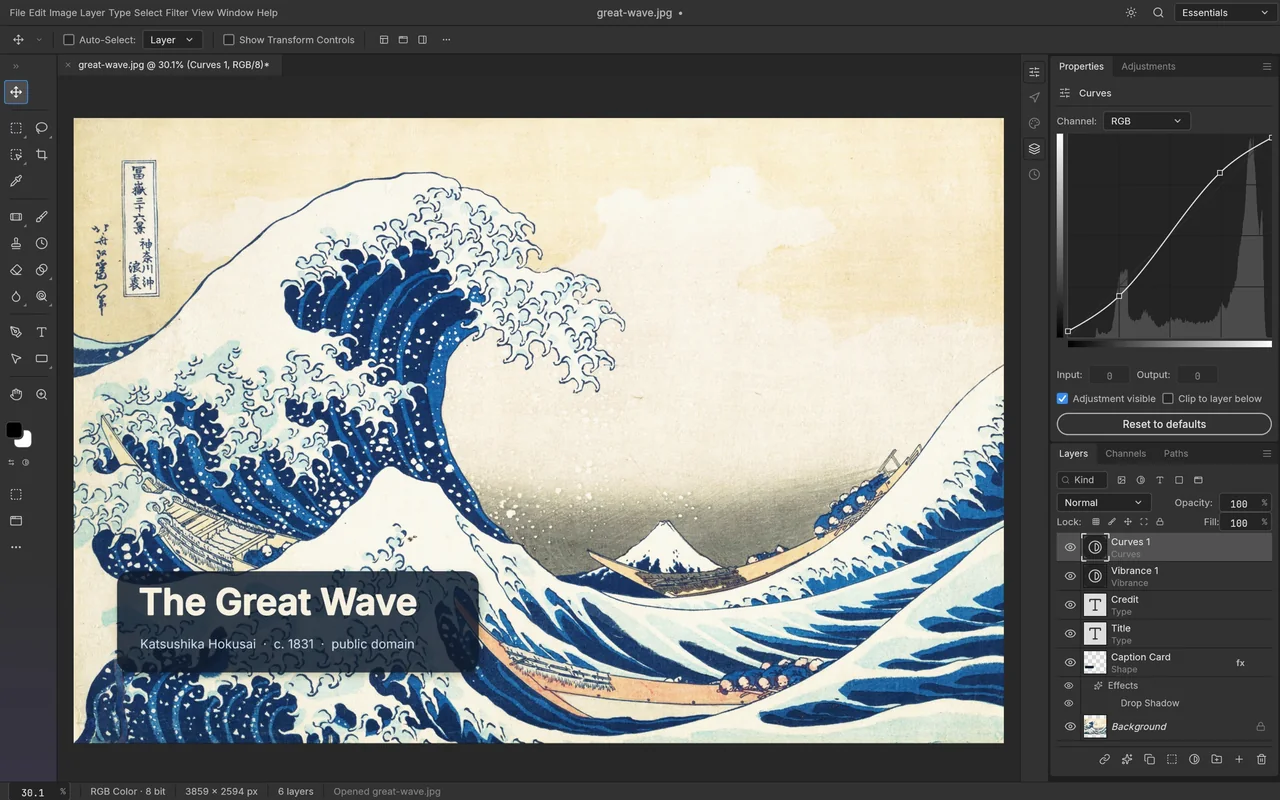
Good for everyday photo edits; keep Photoshop for dependable client PSD handoffs and plug-ins.
The familiar workspace gives you layers, selections, adjustment layers and editable type for common photo tasks.
See PhotoCraft's colour, layer, mask and export tools in the official screenshots.
Use levels and the histogram to adjust the light and dark areas of an image.
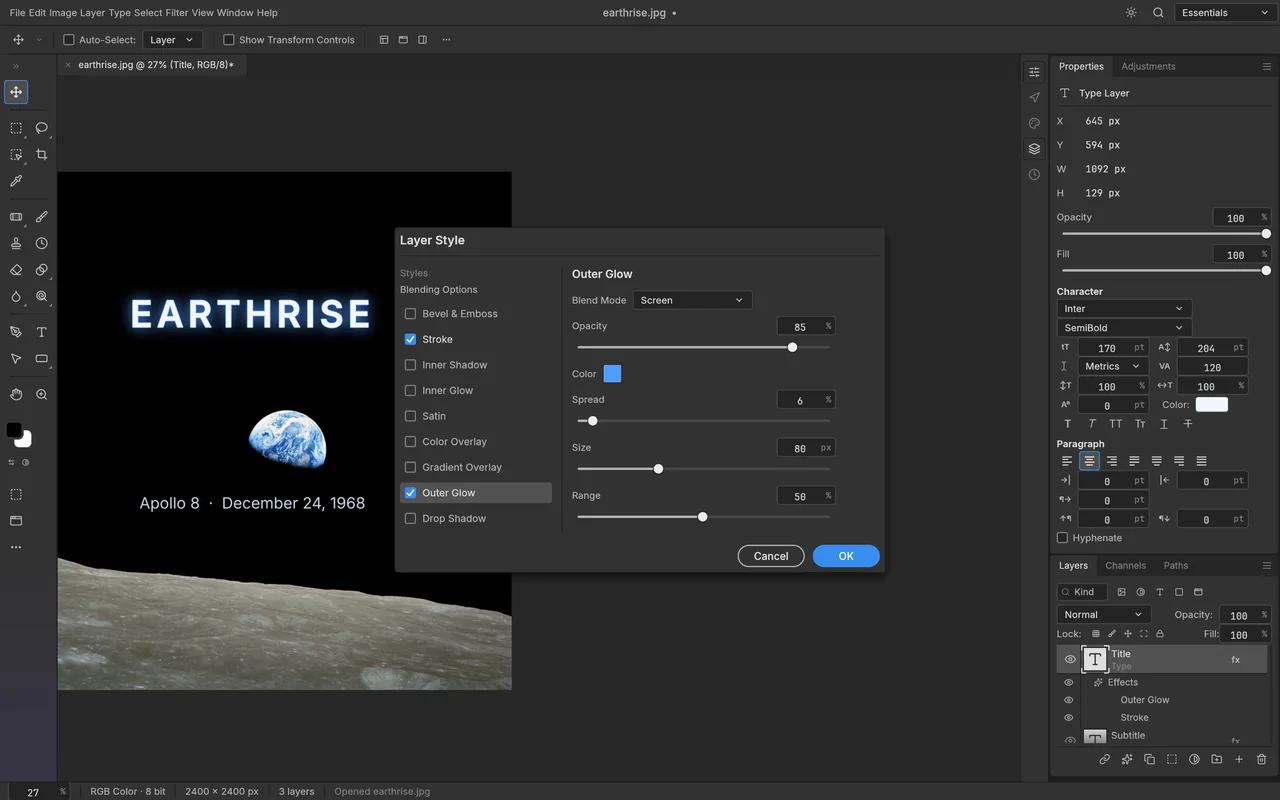
Add editable title text and layer styles to a layered composition.
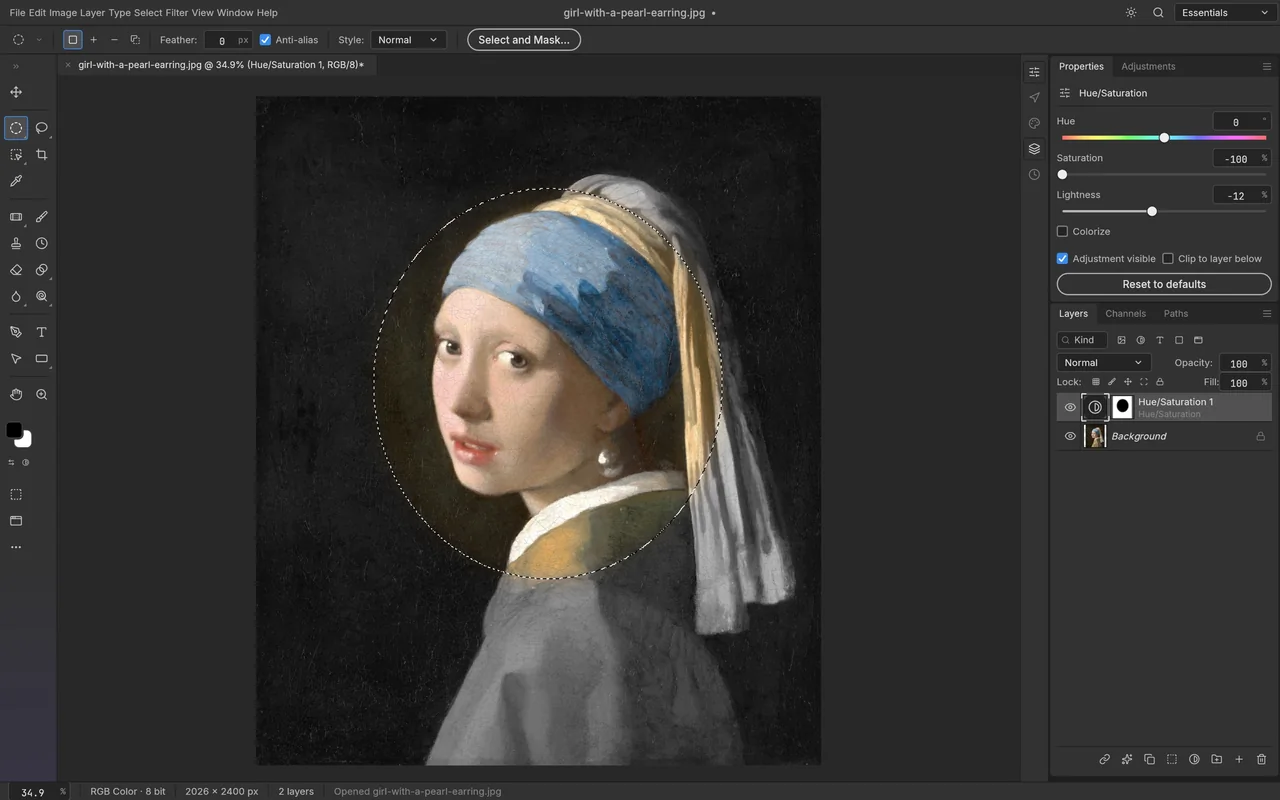
Use a mask to apply a colour adjustment to part of a picture.
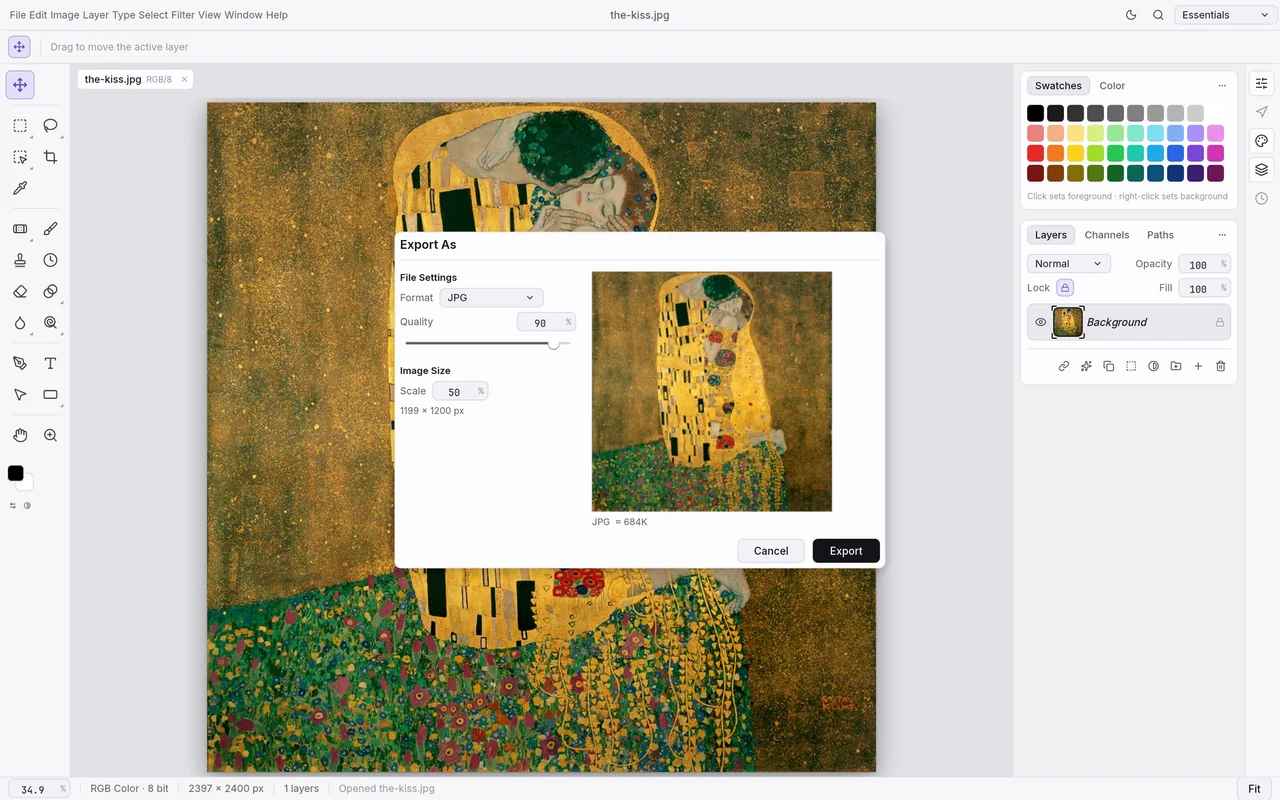
Choose an output format in Export As and preview the estimated file size.
Local photo editing is free, with no subscription.
You don't need an ArtCraft account to edit your own photos.
Your editing happens on your computer and can work offline after installation.
ArtCraft's AI workbench is a separate product, and hosted generation uses credits.
You will need internet access to get the installer, and some first-open system checks may need a connection. For the separate generation service, see AI Workbench and Is ArtCraft free?.
Choose the official desktop package for your system below. Craft Launcher is another route if you want one place to install and update several apps; you can still download PhotoCraft on its own.
For several editing apps, use Craft Launcher to install, verify and update them.
Choose your system and processor to get an official package. The complete package list is available below.
photocraft-0.8.2-windows-arm64.msi
SHA-256
d3bb740ba3ef654467101aaa08ca5deee8e5def339128db45a6d36f54cc42cf2Calculate the local file’s SHA-256, then compare the complete value for this filename.
Get-FileHash -LiteralPath "<downloaded-file>" -Algorithm SHA256photocraft-0.8.2-windows-arm64-portable.zip
SHA-256
9a90b6c818db33b82234475a9785bb6e2727528a4f286e71ea9ecaace0ea5877Calculate the local file’s SHA-256, then compare the complete value for this filename.
Get-FileHash -LiteralPath "<downloaded-file>" -Algorithm SHA256photocraft-0.8.2-windows-x86.msi
SHA-256
354111d2466d46e280fa72c12272a5f957a3c1ec3f68acefca30307a60c14ab5Calculate the local file’s SHA-256, then compare the complete value for this filename.
Get-FileHash -LiteralPath "<downloaded-file>" -Algorithm SHA256photocraft-0.8.2-windows-x86-portable.zip
SHA-256
db3c497897d09d2acf7905deeacb4a00dd42f522f601bbb9ea8a7d806078b505Calculate the local file’s SHA-256, then compare the complete value for this filename.
Get-FileHash -LiteralPath "<downloaded-file>" -Algorithm SHA256photocraft-0.8.2-windows-x64.msi
SHA-256
cca4415e073ecb2255e8deea180c2e69e29f2f3b2c402c832b9d67e0dc386a8bCalculate the local file’s SHA-256, then compare the complete value for this filename.
Get-FileHash -LiteralPath "<downloaded-file>" -Algorithm SHA256photocraft-0.8.2-windows-x64-portable.zip
SHA-256
242acd4134e7947b462d68748b32a6f038fa97099601da950652489690f81799Calculate the local file’s SHA-256, then compare the complete value for this filename.
Get-FileHash -LiteralPath "<downloaded-file>" -Algorithm SHA256photocraft-0.8.2-macos-universal.dmg
SHA-256
d31fe9f86b521319e412515c5313a56dfa7ca015203e2cbaf49a5b1ddb59a601Calculate the local file’s SHA-256, then compare the complete value for this filename.
shasum -a 256 "<downloaded-file>"photocraft-0.8.2-linux-aarch64.AppImage
SHA-256
d387c94d03870f09fe2e35b9aefd88cb65408d2d0fd891e3a8c63e030cf21cd3Calculate the local file’s SHA-256, then compare the complete value for this filename.
sha256sum "<downloaded-file>"photocraft-0.8.2-linux-aarch64.deb
SHA-256
6746360afd551ad095b2c2b7507f40667252ae68275556d6402e2e6642e626f5Calculate the local file’s SHA-256, then compare the complete value for this filename.
sha256sum "<downloaded-file>"photocraft-0.8.2-linux-aarch64.flatpak
SHA-256
467345156043f20c560bf46a4311b3122c88ceddcc9e4c38c2f61df2873be54aCalculate the local file’s SHA-256, then compare the complete value for this filename.
sha256sum "<downloaded-file>"photocraft-0.8.2-linux-aarch64.rpm
SHA-256
6b1fd2d3049de26ca9a007be10d8371bcfc900ef41aadfee61eb57e69dec47ffCalculate the local file’s SHA-256, then compare the complete value for this filename.
sha256sum "<downloaded-file>"photocraft-0.8.2-linux-aarch64.tar.gz
SHA-256
f3920f31406574d1d3f9ca152d46703c8e7f3b504e0d2b2e394f0ad10f0df348Calculate the local file’s SHA-256, then compare the complete value for this filename.
sha256sum "<downloaded-file>"photocraft-0.8.2-linux-riscv64.deb
SHA-256
a8d1fb79417a60f4bf7c72ad8e9d6e26c5747961b55753a4194863febc4f38e2Calculate the local file’s SHA-256, then compare the complete value for this filename.
sha256sum "<downloaded-file>"photocraft-0.8.2-linux-riscv64.rpm
SHA-256
505e6f4a695f302a8951cffe0ae21251a549e1854652d0a47313c6c8a39eac68Calculate the local file’s SHA-256, then compare the complete value for this filename.
sha256sum "<downloaded-file>"photocraft-0.8.2-linux-riscv64.tar.gz
SHA-256
0d8beeeef86131ccc26e9c278f3b07d0a7ee8f99229f6fb1724af80730133fedCalculate the local file’s SHA-256, then compare the complete value for this filename.
sha256sum "<downloaded-file>"photocraft-0.8.2-linux-x86_64.AppImage
SHA-256
5eb656de686af504d8160d5198c2c8d414cf8b7a8d3ecc636bc8ba8fb56448a7Calculate the local file’s SHA-256, then compare the complete value for this filename.
sha256sum "<downloaded-file>"photocraft-0.8.2-linux-x86_64.deb
SHA-256
d527d721dd32131d600013b90fbcaf6f90c49b4cca8c7f4431a143ef7bc7c4c2Calculate the local file’s SHA-256, then compare the complete value for this filename.
sha256sum "<downloaded-file>"photocraft-0.8.2-linux-x86_64.flatpak
SHA-256
5a912ca930783a6168c5ed7c8f587f20c2104dae6788df00b6eb8621274ccb34Calculate the local file’s SHA-256, then compare the complete value for this filename.
sha256sum "<downloaded-file>"photocraft-0.8.2-linux-x86_64.rpm
SHA-256
6567164f10b5f61e18ceb16197f8caeb07755264e6b8d045216720be86ea8241Calculate the local file’s SHA-256, then compare the complete value for this filename.
sha256sum "<downloaded-file>"photocraft-0.8.2-linux-x86_64.tar.gz
SHA-256
16c3089976eee2d290dbe73986db4835c1ec5a043c5c16b017b24848ff5ea827Calculate the local file’s SHA-256, then compare the complete value for this filename.
sha256sum "<downloaded-file>"photocraft-0.8.2-freebsd-x86_64.tar.gz
SHA-256
a8e968707d82314eec1aac62bff3f6dbe51f04619f4b93239f1ecec1949a530eCalculate the local file’s SHA-256, then compare the complete value for this filename.
sha256 -q "<downloaded-file>"flatpak install --user followed by its filename.flatpak run ai.storyteller.photocraft.| System | Published requirement |
|---|---|
| macOS | macOS 11 or later; Intel and Apple silicon |
| Windows | Windows 10 or later; x64 or x86 packages |
| Linux | Normal builds need glibc 2.35 or later; riscv64 needs 2.39. Flatpak supplies its runtime libraries. |
| RAM, GPU and storage | The developers haven't published complete minimum values. |
The developers haven't published app-specific steps for Gatekeeper or SmartScreen warnings. If your computer blocks the app or it won't open, use the official support tracker and describe the message and your system.
Check your system and processor before choosing a package. If you use Linux, the Flatpak route supplies runtime libraries; other package types have their own dependencies, so follow the official installation guide for the package you choose.
Make a simple photo with a title, then save an editable copy and a PNG to share. Begin with a copy of your own image so you can return to the original if you change your mind.
.pcraft copy to keep editing later.Ten shortcuts for opening, saving and everyday edits.
| Action | Windows / Linux | macOS |
|---|---|---|
| Open | Ctrl+O | Command+O |
| Save | Ctrl+S | Command+S |
| Undo | Ctrl+Z | Command+Z |
| Redo | Ctrl+Shift+Z | Command+Shift+Z |
| Cut | Ctrl+X | Command+X |
| Copy | Ctrl+C | Command+C |
| Paste | Ctrl+V | Command+V |
| Free Transform | Ctrl+T | Command+T |
| Deselect | Ctrl+D | Command+D |
| Brush Tool | B | B |
Command defaults, tool groups and common canvas controls.
| Action | Windows / Linux | macOS |
|---|---|---|
| New… | Ctrl+N | Command+N |
| Close | Ctrl+W | Command+W |
| Undo | Ctrl+Z | Command+Z |
| Redo | Ctrl+Shift+Z | Command+Shift+Z |
| Fill… | Shift+F5 | Shift+F5 |
| Clear | Delete | Delete |
| All | Ctrl+A | Command+A |
| Deselect | Ctrl+D | Command+D |
| Inverse | Ctrl+Shift+I | Command+Shift+I |
| Layer… | Ctrl+Shift+N | Command+Shift+N |
| Group Layers | Ctrl+G | Command+G |
| Bring Forward | Ctrl+] | Command+] |
| Send Backward | Ctrl+[ | Command+[ |
| Bring to Front | Ctrl+Shift+] | Command+Shift+] |
| Send to Back | Ctrl+Shift+[ | Command+Shift+[ |
| Create Clipping Mask | Ctrl+Alt+G | Command+Option+G |
| Desaturate | Ctrl+Shift+U | Command+Shift+U |
| Switch Foreground and Background Colors | X | X |
| Default Foreground and Background Colors | D | D |
| Decrease Brush Size | [ | [ |
| Increase Brush Size | ] | ] |
| Decrease Brush Hardness | Shift+[ | Shift+[ |
| Increase Brush Hardness | Shift+] | Shift+] |
| Edit in Quick Mask Mode | Q | Q |
| Target Composite Channel | Ctrl+2 | Command+2 |
| Target Layer Mask | Ctrl+\ | Command+\ |
| Load Luminosity | Ctrl+Alt+2 | Command+Option+2 |
| Target Channel 3 | Ctrl+3 | Command+3 |
| Target Channel 4 | Ctrl+4 | Command+4 |
| Target Channel 5 | Ctrl+5 | Command+5 |
| Target Channel 6 | Ctrl+6 | Command+6 |
| Target Channel 7 | Ctrl+7 | Command+7 |
| Target Channel 8 | Ctrl+8 | Command+8 |
| Target Channel 9 | Ctrl+9 | Command+9 |
| Liquify… | Ctrl+Shift+X | Command+Shift+X |
| Cut | Ctrl+X | Command+X |
| Copy | Ctrl+C | Command+C |
| Copy Merged | Ctrl+Shift+C | Command+Shift+C |
| Paste | Ctrl+V | Command+V |
| Paste in Place | Ctrl+Shift+V | Command+Shift+V |
| Layer via Copy | Ctrl+J | Command+J |
| Layer via Cut | Ctrl+Shift+J | Command+Shift+J |
| Merge Visible | Ctrl+Shift+E | Command+Shift+E |
| Auto Tone | Ctrl+Shift+L | Command+Shift+L |
| Auto Contrast | Ctrl+Alt+Shift+L | Command+Option+Shift+L |
| Auto Color | Ctrl+Shift+B | Command+Shift+B |
| Toggle Last State | Ctrl+Alt+Z | Command+Option+Z |
| Again | Ctrl+Shift+T | Command+Shift+T |
| Transform Again on a Copy | Ctrl+Alt+Shift+T | Command+Option+Shift+T |
| Fade… | Ctrl+Shift+F | Command+Shift+F |
| Content-Aware Scale | Ctrl+Alt+Shift+C | Command+Option+Shift+C |
| Paste Into | Ctrl+Alt+Shift+V | Command+Option+Shift+V |
| Reselect | Ctrl+Shift+D | Command+Shift+D |
| Ungroup Layers | Ctrl+Shift+G | Command+Shift+G |
| Hide Layers | Ctrl+, | Command+, |
| Lock Transparent Pixels | / | / |
| Close All | Ctrl+Alt+W | Command+Option+W |
| Close Others | Ctrl+Alt+P | Command+Option+P |
| Revert | F12 | F12 |
| Save a Copy… | Ctrl+Alt+S | Command+Option+S |
| Open As… | Ctrl+Alt+Shift+O | Command+Option+Shift+O |
| File Info… | Ctrl+Alt+Shift+I | Command+Option+Shift+I |
| Fill with Foreground Color | Alt+Backspace | Option+Backspace |
| Fill with Background Color | Ctrl+Backspace | Command+Backspace |
| Fill with Foreground Color, Preserve Transparency | Alt+Shift+Backspace | Option+Shift+Backspace |
| Fill with Background Color, Preserve Transparency | Ctrl+Shift+Backspace | Command+Shift+Backspace |
| Fill from History | Ctrl+Alt+Backspace | Command+Option+Backspace |
| Last Filter | Ctrl+Alt+F | Command+Option+F |
| All Layers | Ctrl+Alt+A | Command+Option+A |
| Find Layers | Ctrl+Alt+Shift+F | Command+Option+Shift+F |
| Merge Layers | Ctrl+E | Command+E |
| Lens Correction… | Ctrl+Shift+R | Command+Shift+R |
| Adaptive Wide Angle… | Ctrl+Alt+Shift+A | Command+Option+Shift+A |
| Camera Raw Filter… | Ctrl+Shift+A | Command+Shift+A |
| View Layer Mask | \ | \ |
| General… | Ctrl+K | Command+K |
| Keyboard Shortcuts… | Ctrl+Alt+Shift+K | Command+Option+Shift+K |
| Menus… | Ctrl+Alt+Shift+M | Command+Option+Shift+M |
| Print… | Ctrl+P | Command+P |
| Print One Copy | Ctrl+Alt+Shift+P | Command+Option+Shift+P |
| Stamp Visible | Ctrl+Alt+Shift+E | Command+Option+Shift+E |
| Stamp Down | Ctrl+Alt+E | Command+Option+E |
| Make Selection from Path | Ctrl+Enter | Command+Enter |
| Vanishing Point… | Ctrl+Alt+V | Command+Option+V |
| Save for Web (Legacy)… | Ctrl+Alt+Shift+S | Command+Option+Shift+S |
| Open… | Ctrl+O | Command+O |
| Save | Ctrl+S | Command+S |
| Save As… | Ctrl+Shift+S | Command+Shift+S |
| Exit | Ctrl+Q | Command+Q |
| Free Transform | Ctrl+T | Command+T |
| Export As… | Ctrl+Alt+Shift+W | Command+Option+Shift+W |
| Select and Mask… | Ctrl+Alt+R | Command+Option+R |
| Rulers | Ctrl+R | Command+R |
| Grid | Ctrl+' | Command+' |
| Guides | Ctrl+; | Command+; |
| Snap | Ctrl+Shift+; | Command+Shift+; |
| Lock Guides | Ctrl+Alt+; | Command+Option+; |
| Extras | Ctrl+H | Command+H |
| Target Path | Ctrl+Shift+H | Command+Shift+H |
| Cycle Screen Mode | F | F |
| Free Transform a Copy | Ctrl+Alt+T | Command+Option+T |
| Zoom In | Ctrl+= | Command+= |
| Zoom Out | Ctrl+- | Command+- |
| Fit on Screen | Ctrl+0 | Command+0 |
| 100% | Ctrl+1 | Command+1 |
| Layers | F7 | F7 |
| Color | F6 | F6 |
| Brush Settings | F5 | F5 |
| Show/Hide All Panels | Tab | Tab |
| Show/Hide Panels | Shift+Tab | Shift+Tab |
| Next Document | Ctrl+Tab | Ctrl+Tab |
| Previous Document | Ctrl+Shift+Tab | Ctrl+Shift+Tab |
| Search… | Ctrl+F | Command+F |
| Levels | Ctrl+L | Command+L |
| Curves | Ctrl+M | Command+M |
| Hue/Saturation | Ctrl+U | Command+U |
| Color Balance | Ctrl+B | Command+B |
| Invert | Ctrl+I | Command+I |
| Black & White | Ctrl+Alt+Shift+B | Command+Option+Shift+B |
| Color Settings… | Ctrl+Shift+K | Command+Shift+K |
| Image Size… | Ctrl+Alt+I | Command+Option+I |
| Canvas Size… | Ctrl+Alt+C | Command+Option+C |
| Quick Export as PNG | Ctrl+Shift+' | Command+Shift+' |
| Export As… | Ctrl+Alt+Shift+' | Command+Option+Shift+' |
| Feather… | Shift+F6 | Shift+F6 |
| Proof Colors | Ctrl+Y | Command+Y |
| Gamut Warning | Ctrl+Shift+Y | Command+Shift+Y |
| Actions | Alt+F9 | Option+F9 |
| Brush Settings | F5 | F5 |
| Color | F6 | F6 |
| Info | F8 | F8 |
| Layers | F7 | F7 |
| Hand Tool (hold) | Space | Space |
| Zoom In (hold, drag to scrub) | Ctrl+Space | Command+Space |
| Zoom Out (hold) | Alt+Space | Option+Space |
| Erase with Brush or Pencil (hold) | ` | ` |
| Fill (secondary) | Shift+Backspace | Shift+Backspace |
| Tool group | Key |
|---|---|
| Move Tool / Artboard Tool | V |
| Rectangular Marquee Tool / Elliptical Marquee Tool | M |
| Brush Tool / Pencil Tool / Mixer Brush Tool / Color Replacement Tool | B |
| Eraser Tool / Background Eraser Tool / Magic Eraser Tool | E |
| Eyedropper Tool / Color Sampler Tool / Ruler Tool / Note Tool / Count Tool | I |
| Lasso Tool / Polygonal Lasso Tool / Magnetic Lasso Tool | L |
| Magic Wand Tool / Quick Selection Tool / Object Selection Tool | W |
| Crop Tool / Perspective Crop Tool / Slice Tool / Slice Select Tool | C |
| Frame Tool | K |
| Gradient Tool / Paint Bucket Tool | G |
| Horizontal Type Tool / Vertical Type Tool / Horizontal Type Mask Tool / Vertical Type Mask Tool | T |
| Hand Tool | H |
| Rotate View Tool | R |
| Zoom Tool | Z |
| Remove Tool / Spot Healing Brush Tool / Healing Brush Tool / Patch Tool / Content-Aware Move Tool / Red Eye Tool | J |
| Clone Stamp Tool / Pattern Stamp Tool | S |
| History Brush Tool | Y |
| Dodge Tool / Burn Tool / Sponge Tool | O |
| Pen Tool / Freeform Pen Tool / Curvature Pen Tool / Add Anchor Point Tool / Delete Anchor Point Tool / Convert Point Tool | P |
| Path Selection Tool / Direct Selection Tool | A |
| Rectangle Tool / Ellipse Tool / Triangle Tool / Polygon Tool / Line Tool / Custom Shape Tool | U |
| When to use it | Windows / Linux | macOS |
|---|---|---|
| Cycle tools in the current group; the default uses Shift. | Shift+tool letter | Shift+tool letter |
| Confirm or cancel a transform, crop, lasso or pen operation; text fields and dialogs may take priority. | Enter / Escape | Enter / Escape |
| Remove the last point while drawing with the pen or polygonal lasso. | Backspace / Delete | Backspace / Delete |
| With the crop frame active, change composition guides or orientation. | O / Shift+O | O / Shift+O |
| With the crop frame active, toggle the cropped-area preview. | H | H |
| With Crop active, fill in the current image size and resolution. | I | I |
| With Crop active, swap width and height or orientation. | X | X |
| For applicable tools, set opacity; two quick digits set an exact percentage. | 1–9 / 0 | 1–9 / 0 |
| Set brush flow or layer fill, depending on the active tool. | Shift+1–9 / Shift+0 | Shift+1–9 / Shift+0 |
| Cycle blend modes for the active tool or layer. | Shift++ / Shift+- | Shift++ / Shift+- |
| While holding Hand, cycle the canvas-surround colour forwards or backwards. | Space+F / Shift+Space+F | Space+F / Shift+Space+F |
| Move or transform by 1 or 10 pixels; drawing-tool arrows can rotate the brush tip. | Arrow keys / Shift+Arrow keys | Arrow keys / Shift+Arrow keys |
| Duplicate and move with Move or Free Transform. | Alt+Arrow keys | Option+Arrow keys |
| Windows clipboard alternatives: copy, paste and cut. | Ctrl+Insert / Shift+Insert / Shift+Delete | Windows only |
Start with the manual when you need a particular tool or menu, and use the walkthrough for a real user's account of editing on Linux.
Reviewers liked the familiar tools but reported problems with selections.
Adjustment layers, text and filters worked well for his Linux image edits. Read his walkthrough.
Startup felt fast and the interface responsive on his modest Linux laptop. Read his earlier-release review.
Selections needed retries and moving objects felt awkward on his Intel Mac. Read his earlier-release review.
Automatic selections were less precise, and filters did not preview during his Windows use. Read his review.
Try automatic selection on a photo copy first.
PhotoCraft reads and writes layered PSD and PSB files; check the saved copy's layers, fonts and appearance in Photoshop before client delivery.
| Format | Open / save | What to watch |
|---|---|---|
| PSD / PSB | Read and write layered files | Photoshop appearance and editing details may change. |
| PNG / JPEG | Import and export | Flattened images do not keep editable layers. |
| TIFF | Read and write | Check the particular TIFF variant you use. |
| SVG | Open or place as vector content | No SVG export; not full Illustrator project exchange. |
Save your ongoing PhotoCraft work as .pcraft, then choose a separate export for the recipient. An image for a website and an editable PSD for another designer are different deliveries; agree on the format before editing. See the full format reference.
Choose by the work you do most often. PhotoCraft offers a familiar layered-photo workspace, while drawing, browser editing and long-established local image editing point to different choices.
| App | Good for | Free option |
|---|---|---|
| PhotoCraft | Everyday layered photo edits | Free local editor; PSD exchange needs checking. |
| GIMP | Local photo retouching and image composition | Free official download. |
| Krita | Illustration, brushes and 2D animation | Free official download; store editions may cost money. |
| Photopea | Browser PSD work and simple photo edits | Free with ads; Premium adds benefits and removes ads. |
No. PhotoCraft's local editing is free; hosted generation in the separate ArtCraft AI workbench uses credits.
Check the saved PSD's layers, fonts and appearance in Photoshop before client delivery.
The developers provide a self-hosted browser bundle but haven't published an official hosted editor URL. The desktop download is the simplest route on this page.
Follow the five-step edit above, then open the official user manual for the tool you need. Sam Allen's Linux walkthrough shows another user's photo-editing experience.
Expect differences in selection, text and PSD handling; check the finished image and saved file before delivery.
Based on official docs and published reviews; we didn't install it ourselves.
Last checked: 14 Oct 2026.
Current release: 0.8.2.


