
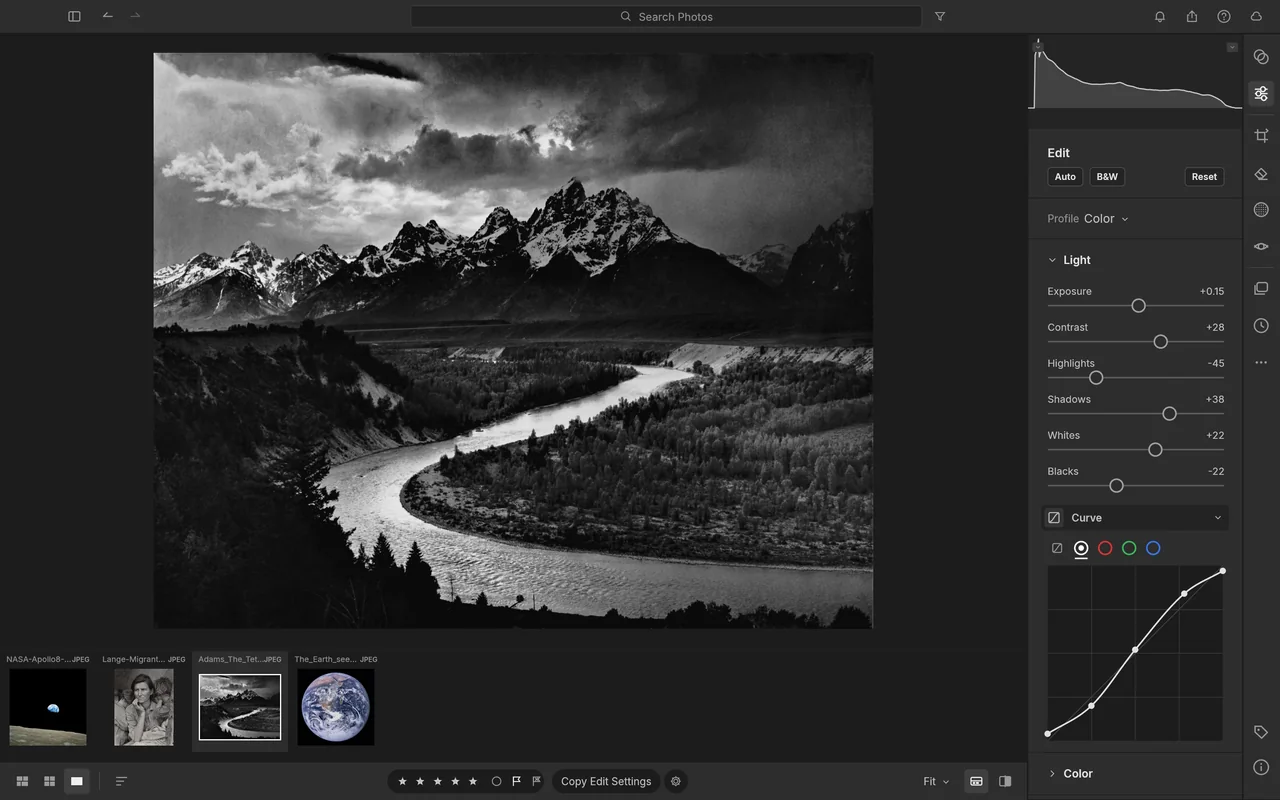
Curves for tonal adjustments
Use the RGB curves panel to adjust the tones of a photo while viewing the image and filmstrip.
Organise photos, adjust RAW images, apply masks and export batches.
Free · No subscription · No account needed for local editing · Windows / macOS / Linux
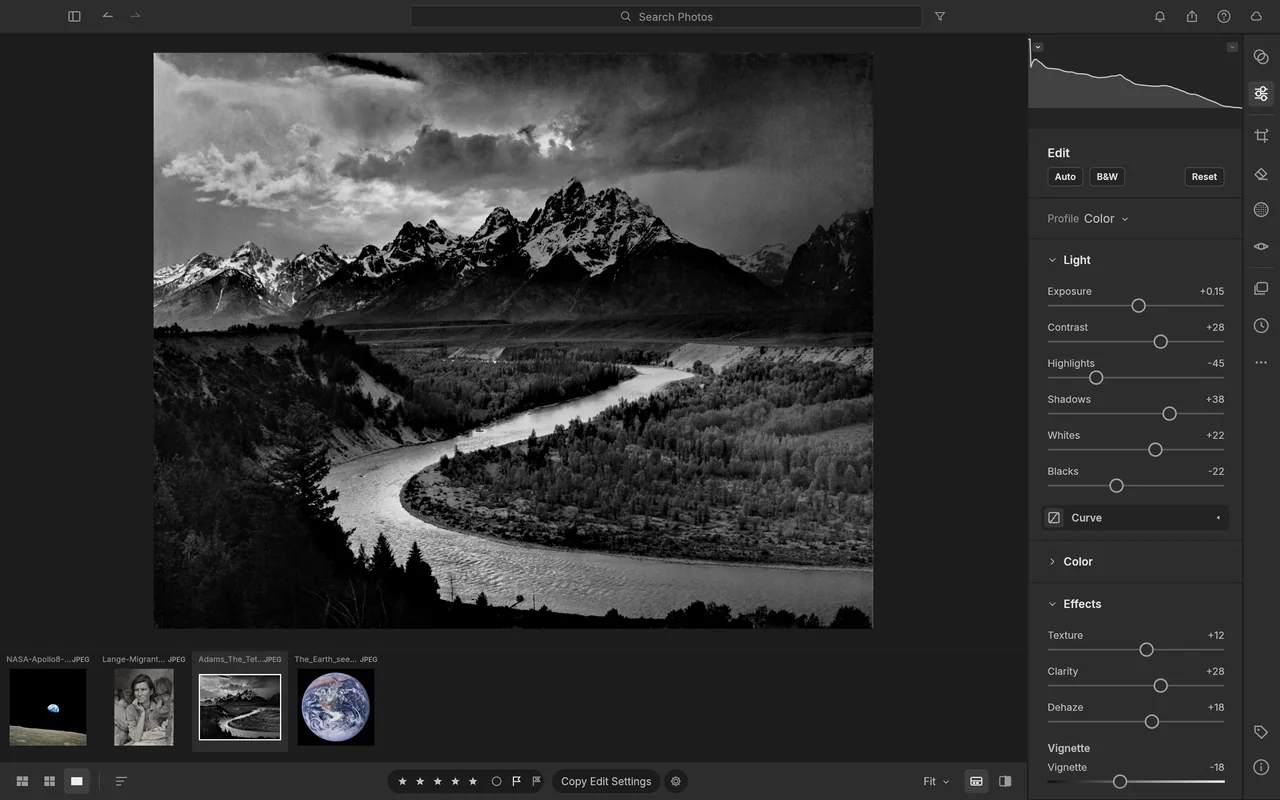
Try it with supported camera files; check RAW variants before moving your photo library.
Keep Lightroom for specialist modules, cloud work and camera files that don't fully decode here.
A local library with ratings and an editing panel makes a sensible starting point for sorting and adjusting your photographs. Begin with a small set from your own camera so you can inspect detail, colour and exports before changing a larger workflow.
The official screenshots show a monochrome landscape with light controls and a separate curves view.
Use the RGB curves panel to adjust the tones of a photo while viewing the image and filmstrip.
Local photo editing is free, with no subscription.
You don't need an account for local photo work.
Ordinary editing uses your local library; optional models, place-name downloads and network libraries need their own connections.
Downloading the app and updates also needs internet access. ArtCraft's hosted AI workbench is a separate product with generation credits; see AI Workbench and Is ArtCraft free?.
Choose the official desktop package for your system below. Craft Launcher is another route if you want one place to install and update several apps; LightCraft is also available as a separate download.
For several editing apps, use Craft Launcher to install, verify and update them.
Choose your system and processor to get an official package. The complete package list is available below.
lightcraft-0.7.1-windows-arm64.msi
SHA-256
968d715e08e956148e38ce3ee9cf010a7d5e069936a6153a6637063cc893c4ebCalculate the local file’s SHA-256, then compare the complete value for this filename.
Get-FileHash -LiteralPath "<downloaded-file>" -Algorithm SHA256lightcraft-0.7.1-windows-arm64-portable.zip
SHA-256
636e911dc4278cfd984495e6dd2f186d815169674ae55e1feaf310d662c42117Calculate the local file’s SHA-256, then compare the complete value for this filename.
Get-FileHash -LiteralPath "<downloaded-file>" -Algorithm SHA256lightcraft-0.7.1-windows-x86.msi
SHA-256
7e1f84ecb99316cdd0cbcda34ac60f97e594d95ef30a6cb69cc271748693262bCalculate the local file’s SHA-256, then compare the complete value for this filename.
Get-FileHash -LiteralPath "<downloaded-file>" -Algorithm SHA256lightcraft-0.7.1-windows-x86-portable.zip
SHA-256
0339fb7e5d6c99767e3693a55946fa959c5c07bb1ed69fb757ebbe20105fb955Calculate the local file’s SHA-256, then compare the complete value for this filename.
Get-FileHash -LiteralPath "<downloaded-file>" -Algorithm SHA256lightcraft-0.7.1-windows-x64.msi
SHA-256
73de928a80e534557c7ce594620166b09a4eeaf6966f7a2735fced4b0909cb15Calculate the local file’s SHA-256, then compare the complete value for this filename.
Get-FileHash -LiteralPath "<downloaded-file>" -Algorithm SHA256lightcraft-0.7.1-windows-x64-portable.zip
SHA-256
07916edd78bd847c411e755faebe0cd199edcf49efb67357083dd2e36f7dbbdaCalculate the local file’s SHA-256, then compare the complete value for this filename.
Get-FileHash -LiteralPath "<downloaded-file>" -Algorithm SHA256lightcraft-0.7.1-macos-universal.dmg
SHA-256
9c7aaf1ab532ee81819fded3ec451af5a2bad3b7c1b5c9d48e36b82239331457Calculate the local file’s SHA-256, then compare the complete value for this filename.
shasum -a 256 "<downloaded-file>"lightcraft-0.7.1-linux-aarch64.AppImage
SHA-256
789419fd038ae857a0b5caa1968cc7247ae479c3819deabedaa42c11ab91733eCalculate the local file’s SHA-256, then compare the complete value for this filename.
sha256sum "<downloaded-file>"lightcraft-0.7.1-linux-aarch64.deb
SHA-256
5f6daf4b5c485bbfc49138802f0e781e05f5d08c9e6460127a9ef475b9920647Calculate the local file’s SHA-256, then compare the complete value for this filename.
sha256sum "<downloaded-file>"lightcraft-0.7.1-linux-aarch64.flatpak
SHA-256
921da676269b6b740722b80bb360b81abb0006e71fbb669ffb71042be2e030f1Calculate the local file’s SHA-256, then compare the complete value for this filename.
sha256sum "<downloaded-file>"lightcraft-0.7.1-linux-aarch64.rpm
SHA-256
64076f0ca39ce4c5c9bc8957f03ac8c4ee0f311a87ebe444a1628b8347f798c1Calculate the local file’s SHA-256, then compare the complete value for this filename.
sha256sum "<downloaded-file>"lightcraft-0.7.1-linux-aarch64.tar.gz
SHA-256
26de6212cd6a13d5d2ca758e0cf6b12b1bbf00b94834520992cee516481174a2Calculate the local file’s SHA-256, then compare the complete value for this filename.
sha256sum "<downloaded-file>"lightcraft-0.7.1-linux-riscv64.tar.gz
SHA-256
04dafe211d9f55785fb95b3495de3900c50725d6a1f859d673080a4d26112f1eCalculate the local file’s SHA-256, then compare the complete value for this filename.
sha256sum "<downloaded-file>"lightcraft-0.7.1-linux-x86_64.AppImage
SHA-256
78078794a6bd8f1026036f2503a1cf716ad2c3b57e1ca8b2bdc46472099c1e48Calculate the local file’s SHA-256, then compare the complete value for this filename.
sha256sum "<downloaded-file>"lightcraft-0.7.1-linux-x86_64.deb
SHA-256
b00b8ace27222ef4eb566aa276100e81e9241ee81e78b6ccb133d0edf8fa863eCalculate the local file’s SHA-256, then compare the complete value for this filename.
sha256sum "<downloaded-file>"lightcraft-0.7.1-linux-x86_64.flatpak
SHA-256
c1ce75a772e29ed7b16864053bde6683a076fbaf54560fb343d77220eaadd284Calculate the local file’s SHA-256, then compare the complete value for this filename.
sha256sum "<downloaded-file>"lightcraft-0.7.1-linux-x86_64.rpm
SHA-256
dced13fbe81bb9b016413879ad5cccf2295352d2b2149487053ebfac6925b099Calculate the local file’s SHA-256, then compare the complete value for this filename.
sha256sum "<downloaded-file>"lightcraft-0.7.1-linux-x86_64.tar.gz
SHA-256
842881f5ad16502df11eeef4c28e5dcf2c5d66b7d4d838af7179a3fd2e0cb6c0Calculate the local file’s SHA-256, then compare the complete value for this filename.
sha256sum "<downloaded-file>"lightcraft-0.7.1-freebsd-x86_64.tar.gz
SHA-256
0904ad8ba35b1a449254aa24c2c65ef9fcbdba3ee3d4d378339770a2ce23e50cCalculate the local file’s SHA-256, then compare the complete value for this filename.
sha256 -q "<downloaded-file>"flatpak install --user followed by its filename.| System | Published requirement |
|---|---|
| macOS | Universal package for Intel and Apple silicon; minimum macOS version not published |
| Windows | x64, ARM64 and x86 packages; minimum Windows version not published |
| Linux | Ordinary builds need glibc 2.35 or later; riscv64 needs 2.39 or later. |
| CPU performance, RAM, GPU and storage | The developers haven't published complete minimum values. |
The developers haven't published app-specific steps for Gatekeeper or SmartScreen warnings. If your computer blocks the app or it won't open, use the official support tracker and include the message and your system.
Windows portable ZIPs and other Linux packages are also available. Follow the official installation guide for your chosen package, and check HEIC/HEIF support if you need to open those photographs.
Import a photograph, change its exposure and export a finished copy. Start with a JPEG or a camera RAW variant listed as supported so that the first task centres on editing.
Ten shortcuts for switching views and opening common editing controls.
| Action | Windows / Linux | macOS |
|---|---|---|
| Grid | G | G |
| Detail | D | D |
| Edit | E | E |
| Crop & Rotate | C | C |
| Masking | M | M |
| Presets | Shift+P | Shift+P |
| Show Original | Backslash | Backslash |
| Compare Before and After | Y | Y |
| Toggle Zoom | Z | Z |
| Show Clipping | J | J |
| Action | Windows / Linux | macOS |
|---|---|---|
| Grid | G | G |
| Guided Upright | Shift+G | Shift+G |
| Detail | D | D |
| Compare | Shift+C | Shift+C |
| Survey | N | N |
| Reference View | Shift+R | Shift+R |
| Filmstrip | / | / |
| My Photos Panel | Ctrl+Shift+L | Command+Shift+L |
| Compare Before and After | Y | Y |
| Before/After Split | Shift+Y | Shift+Y |
| Before/After Top/Bottom | Alt+Y | Option+Y |
| Before/After Split Top/Bottom | Alt+Shift+Y | Option+Shift+Y |
| Show Original | \ | \ |
| Zoom to Fit | Ctrl+0 | Command+0 |
| Zoom 100% | Ctrl+Alt+0 | Command+Option+0 |
| Toggle Zoom | Z | Z |
| Zoom In | Ctrl+= | Command+= |
| Zoom Out | Ctrl+- | Command+- |
| Show Clipping | J | J |
| Soft Proofing | S | S |
| Histogram | Ctrl+Shift+H | Command+Shift+H |
| Show Mask Overlay | O | O |
| Visualize Spots | A | A |
| Cycle Crop Overlay | Shift+O | Shift+O |
| Back to Grid | Escape | Escape |
| Done | Enter | Enter |
| Filter Bar | Shift+F | Shift+F |
| Full Screen Preview | F | F |
| Lights Out | Shift+L | Shift+L |
| Enter Full Screen | Ctrl+Shift+F | Command+Shift+F |
| Cycle Info Overlay | Ctrl+I | Command+I |
| Edit | E | E |
| Crop & Rotate | C | C |
| Remove | H | H |
| Masking | M | M |
| Presets | Shift+P | Shift+P |
| Info | I | I |
| Keywords | K | K |
| Versions | Shift+V | Shift+V |
| Light | Ctrl+1 | Command+1 |
| Color | Ctrl+2 | Command+2 |
| Effects | Ctrl+3 | Command+3 |
| Detail | Ctrl+4 | Command+4 |
| Optics | Ctrl+5 | Command+5 |
| Brush | B | B |
| Linear Gradient | L | L |
| Radial Gradient | R | R |
| White Balance Selector | W | W |
| Decrease Brush Size | [ | [ |
| Increase Brush Size | ] | ] |
| Decrease Brush Feather | Shift+[ | Shift+[ |
| Increase Brush Feather | Shift+] | Shift+] |
| New Album… | Ctrl+N | Command+N |
| New Folder… | Ctrl+Shift+N | Command+Shift+N |
| Slideshow | Ctrl+Alt+Enter | Command+Option+Enter |
| Second Window | Ctrl+F11 | Command+F11 |
| New Smart Album from Filter… | Ctrl+Alt+N | Command+Option+N |
| Create Preset… | Ctrl+Shift+P | Command+Shift+P |
| Choose Edit Settings to Copy… | Ctrl+Shift+C | Command+Shift+C |
| Paste Selected Settings… | Ctrl+Shift+V | Command+Shift+V |
| Find… | Ctrl+F | Command+F |
| Edit in PhotoCraft | Ctrl+Shift+E | Command+Shift+E |
| Edit in Other Editor | Ctrl+Alt+E | Command+Option+E |
| HDR… | Ctrl+H | Ctrl+H |
| Panorama… | Ctrl+M | Ctrl+M |
| HDR with Last Settings | Ctrl+Shift+H | Ctrl+Shift+H |
| Panorama with Last Settings | Ctrl+Shift+M | Ctrl+Shift+M |
| Import Photos… | Ctrl+Shift+I | Command+Shift+I |
| Quit LightCraft | Ctrl+Q | Command+Q |
| Settings… | Ctrl+, | Command+, |
| LightCraft Help | F1 | F1 |
| Keyboard Shortcuts | Ctrl+/ | Command+/ |
| Show in Finder | Ctrl+R | Command+R |
| Rename Photos… | F2 | F2 |
| Export with Previous | Ctrl+Alt+Shift+E | Command+Option+Shift+E |
| Clear star rating | 0 | 0 |
| Set star rating | 1–5 | 1–5 |
| Decrease / increase rating | [ / ] | [ / ] |
| Red / yellow / green / blue label | 6 / 7 / 8 / 9 | 6 / 7 / 8 / 9 |
| Flag pick | P | P |
| Flag reject | X | X |
| Clear flag | U | U |
| Apply and advance | Shift+0–9 / P / X / U | Shift+0–9 / P / X / U |
| Select All | Ctrl+A | Command+A |
| Deselect All | Ctrl+Shift+A | Command+Shift+A |
| Next Photo | Right | Right |
| Previous Photo | Left | Left |
| Flag as Pick | P | P |
| Flag as Reject | X | X |
| Unflag | U | U |
| Rotate Left | Ctrl+[ | Command+[ |
| Rotate Right | Ctrl+] | Command+] |
| Delete Photo | Delete | Delete |
| Import Photos | Ctrl+Shift+I | Command+Shift+I |
Use the official guide to find a feature, and the review to understand another photographer's experience. For your first batch, inspect the exported size, metadata and any watermark settings as well as the image itself.
A photographer found familiar tone controls alongside problems with sharpening and masking.
Light, tone curves, HSL and colour controls behaved much as he expected on Windows. Sharpening produced harsh artefacts, and subject masking selected the wrong region. Read his review.
Try sharpening and automatic masks on a photo copy before applying them across a batch.
Check your exact camera and RAW compression variant before relying on a full decode. Some files open only their embedded preview, which is different from developing the original RAW photograph.
| Format | Open / save | What to watch |
|---|---|---|
| Camera RAW / DNG | Support varies by camera and encoding; DNG export available | Check whether the app decodes the RAW or shows an embedded preview. |
| JPEG / PNG / TIFF | Import and export | Inspect the exported image, size and metadata. |
| XMP | Read and write sidecars | Inspect the settings exchanged with another editor. |
| HEIC / HEIF | Opening depends on the build | Choose a package with the required support. |
| PSD | Opens the merged image | Original Photoshop layers are not editable. |
Keep your original RAW files and existing editing setup while checking a small import. A photo that appears in the library still needs a close look at detail and colour before you judge the result. See the full format reference.
Choose by your main task: sorting photographs, developing RAW files or making detailed colour adjustments. LightCraft offers a familiar local workflow, while these established apps focus on different parts of a photo library.
| App | Good for | Free option |
|---|---|---|
| LightCraft | Local sorting and editing supported camera files | Free local app; check the exact RAW variant. |
| darktable | Photo management and non-destructive RAW development | Free open source official download. |
| RawTherapee | Detailed RAW quality and colour adjustments | Free open source official download. |
| digiKam | Photo organisation, tags and search | Free open source official download; models can be downloaded as needed. |
Try it for local photo sorting and supported RAW edits. Keep Lightroom for camera files that don't fully decode and specialist modules or cloud workflows you depend on.
No. Local photo work is free and needs no account; the separate hosted AI workbench uses generation credits.
Some camera and compression variants provide only an embedded preview. Check the official RAW support information for your exact camera file.
LightCraft opens the merged image in a PSD. Use a layered editor such as PhotoCraft when you need to work on the individual layers.
Import a JPEG or supported RAW, follow the five-step exposure edit and inspect the exported image before trying a larger batch.
Based on official docs and published reviews; we didn't install it ourselves.
Last checked: 14 Oct 2026.
Current release: 0.7.1.

